Features
Team members
Invite coaches and helpers to your club so they can plan events and manage athletes alongside you. Everyone you invite shares your club’s access — they do not need their own paid plan. Available on the Club plan.
Who can invite
Only the club owner or an admincan invite new members. Regular members can use the club’s tools but cannot manage who belongs to the club.
Sending an invite
- Open My Organization and scroll to the Members section.
- Under Invite someone, enter the person’s email address and choose Send invite.
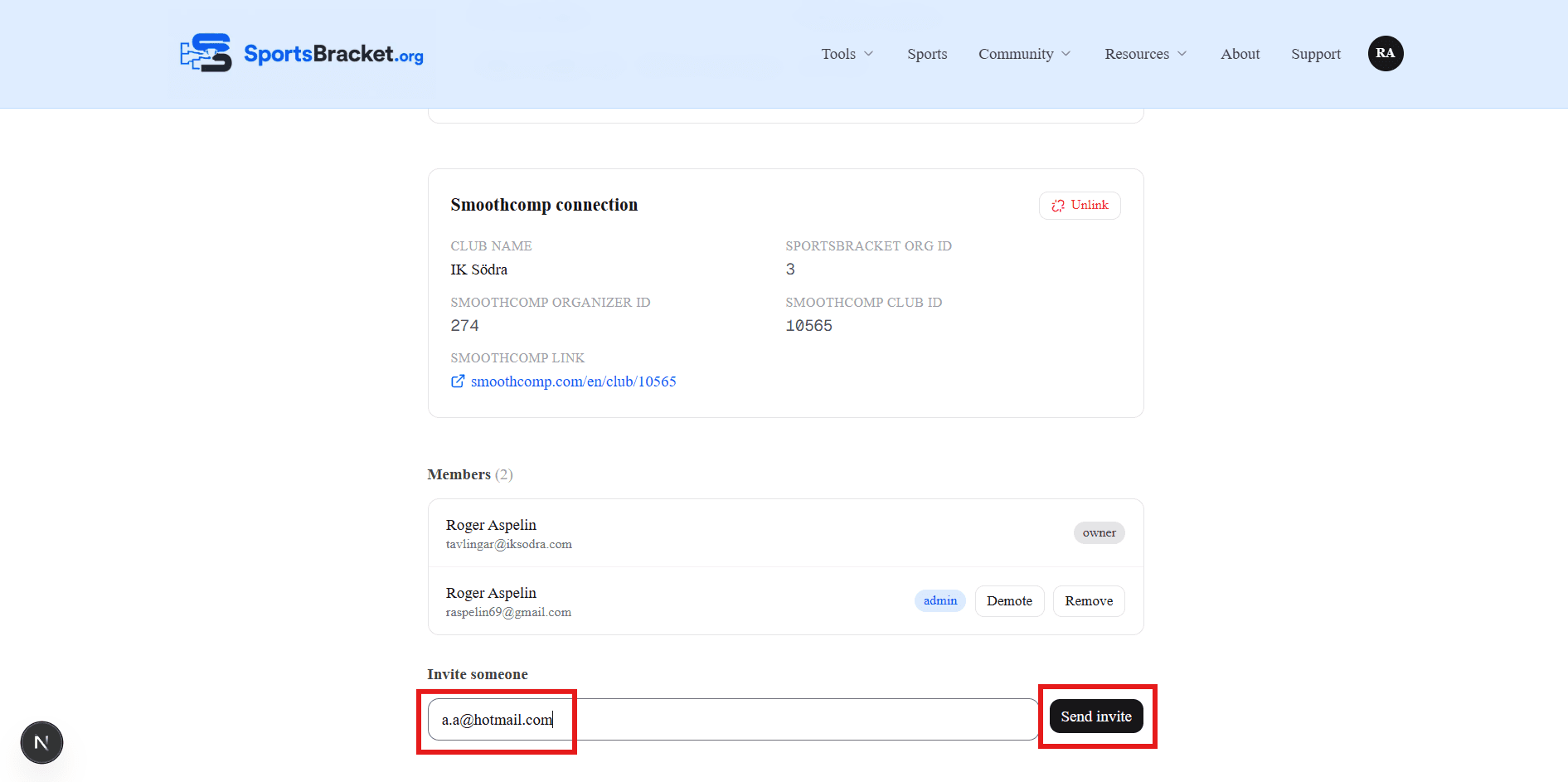
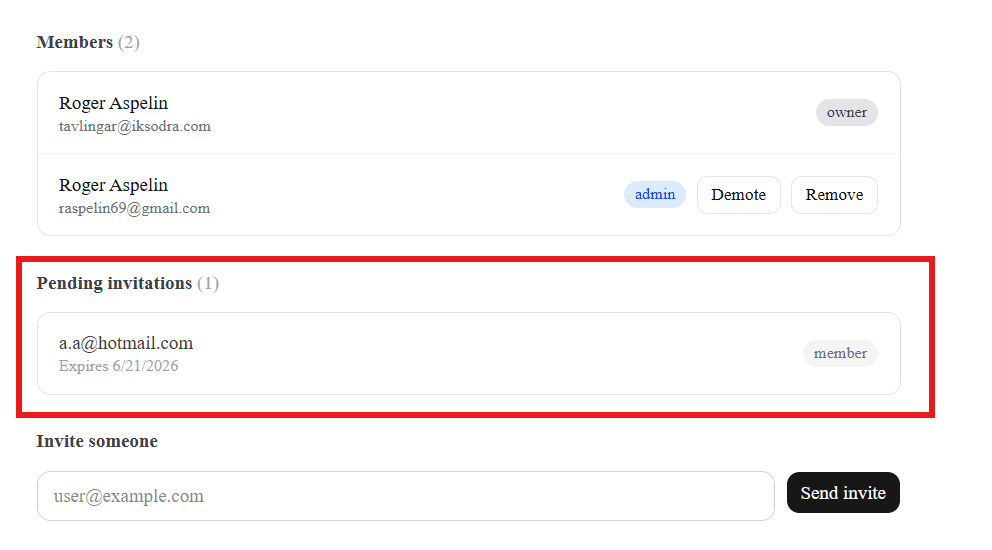
They receive an email with a personal invite link, and you’ll see them listed under Pending invitations until they accept. Everyone joins as a member first — you can promote them to admin later.
What the invited person sees
They receive an email inviting them to join your club. They open it and choose Accept invitation.
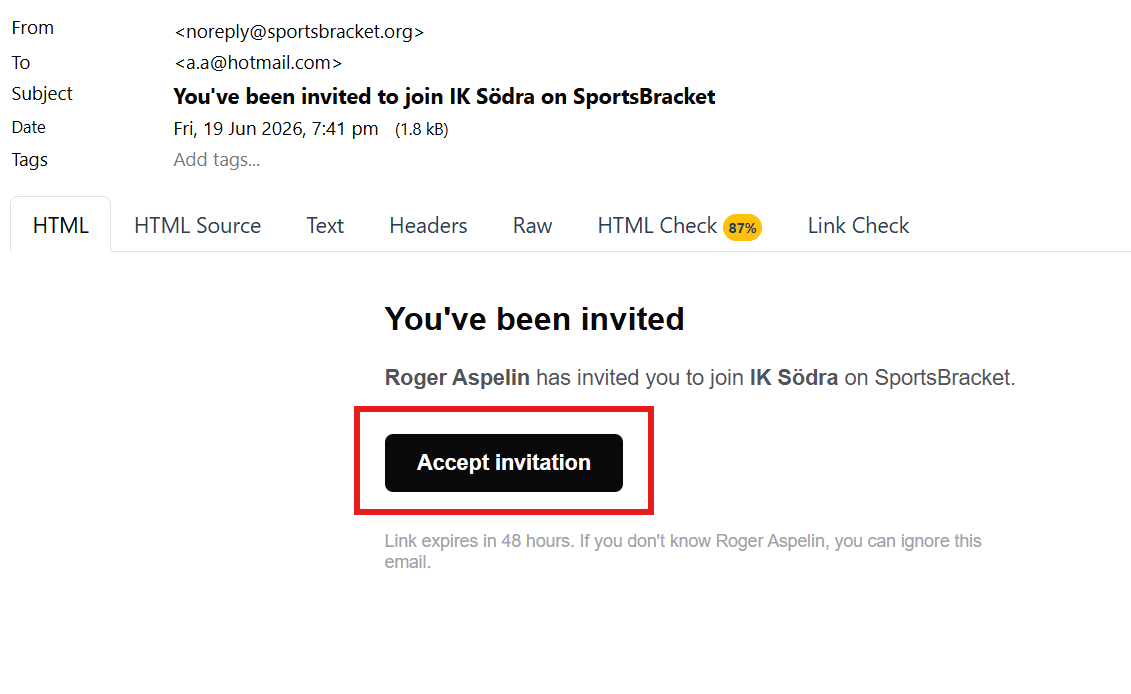
If they already have an account
They sign in (if they aren’t already) and go straight to the Joining the club step below.
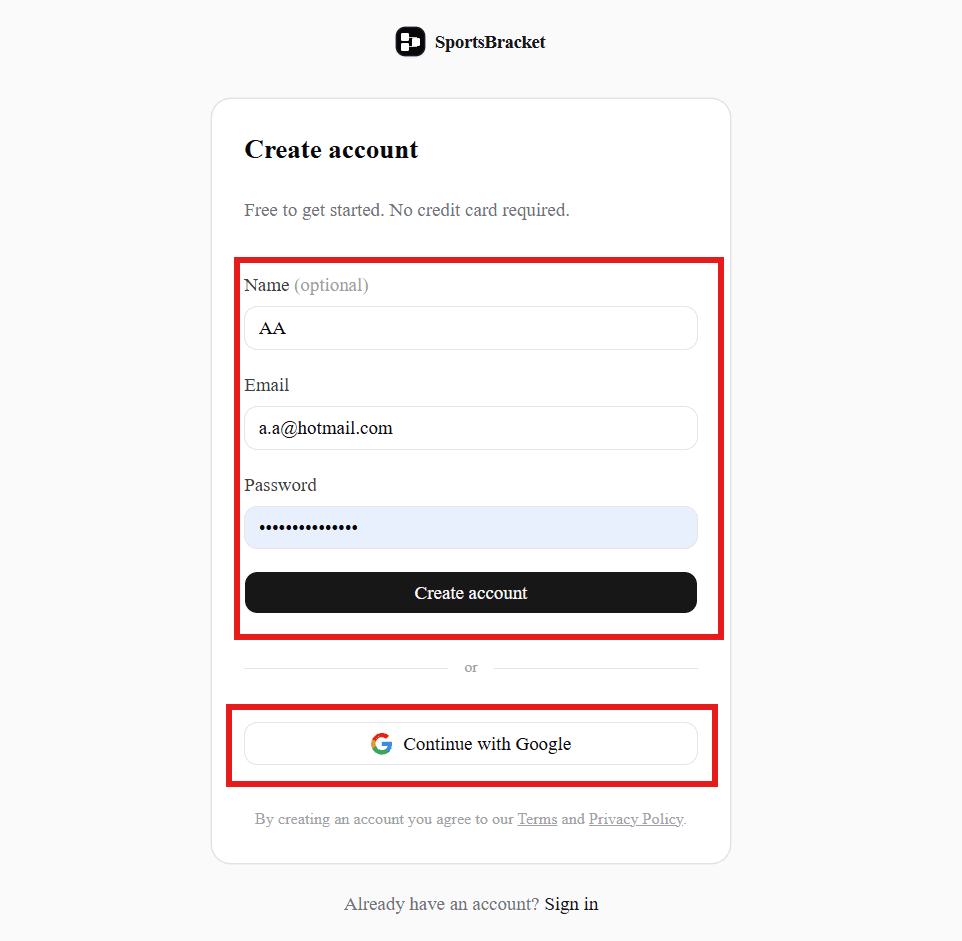
If they’re new to SportsBracket
- They choose to create a new account and fill in their details.
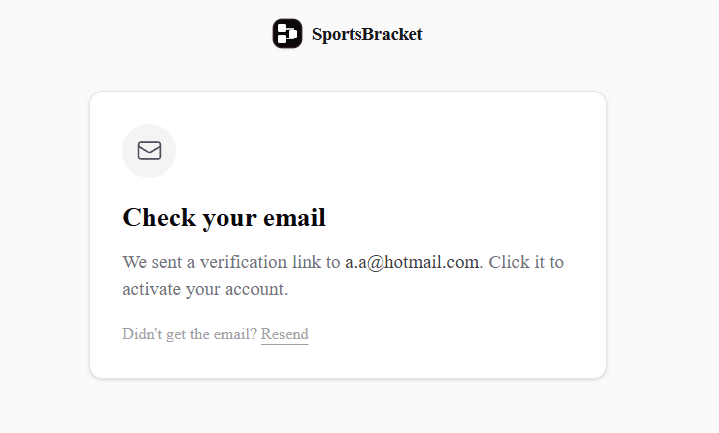
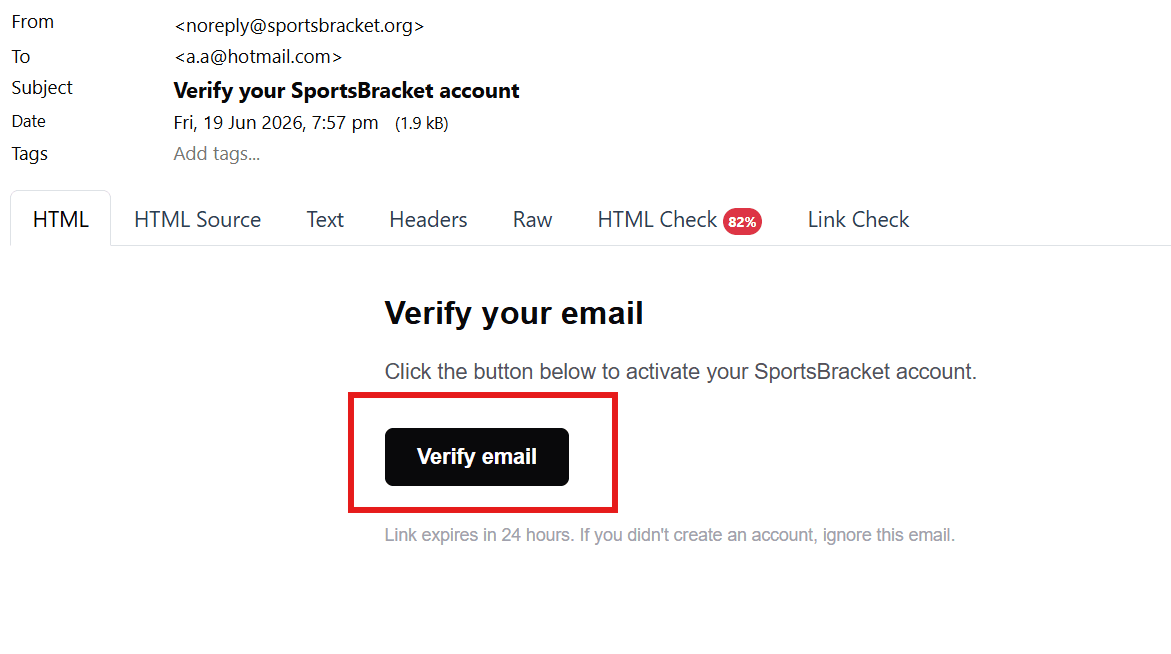
- We send them a verification email — they’ll see a Check your email screen in the meantime.
- They open the verification email and click Verify email, then sign in.
Joining the club
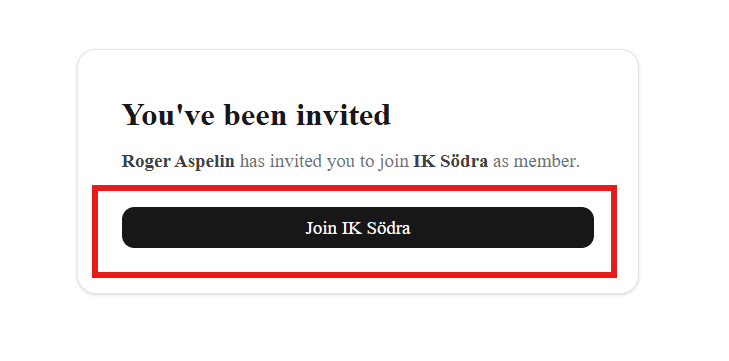
Whichever way they got here, the last step is the same: they confirm with the Join [club name]button and land on the club dashboard, where the planning tools live. They share your club’s access immediately — no extra setup or payment on their side.
Managing members
Back in the Memberssection, the owner and admins can change a member’s role (promote to admin or back to member), remove someone from the club, and see any pending invitations that haven’t been accepted yet.
Roles at a glance
- Owner — the person whose plan the club runs on. Full control, including billing.
- Admin — can invite, remove and manage members, and use all club tools.
- Member — can use the club tools (event planning, athletes, and more) but cannot manage members.
Last updated: 19 June 2026